
How to assign a new Meta partner to give access to your ad data.

This is a quick tutorial on how to assign a new Meta partner to allow them to access your ad data. You will give permissions to your ad account, Facebook page and Instagram account. Giving access to your ad account will allow the partner to view performance data (clicks, impressions, spend etc). Giving access to your Facebook page and Instagram account will allow the partner to view ad creatives (images and videos).
If you are following this tutorial to assign Bigged as a partner, our Meta partner ID is: 1096498959043504.
1. Go to https://business.facebook.com/latest/settings/business_info
2. On the left hand side, click "Partners"
.jpg)
3. In the top right, click "Add", then "Give a partner access to your assets"
.jpg)
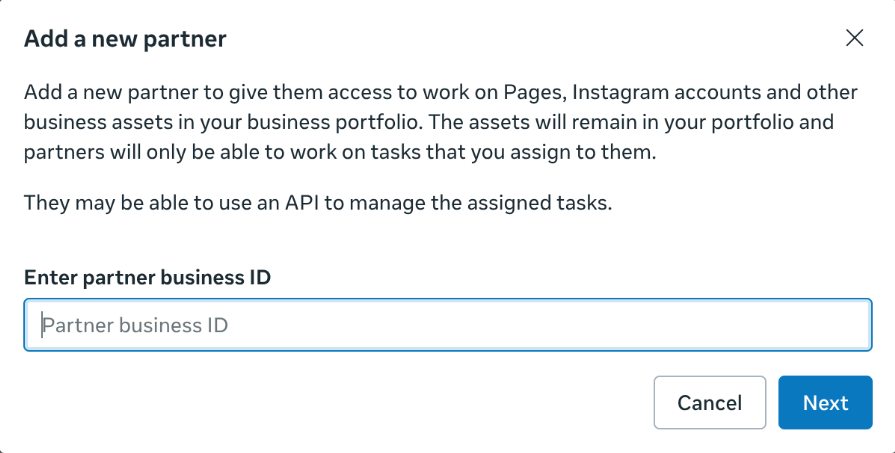
4. Here, paste your partner's ID that they should have sent you. Then click "Next". (If you are following this tutorial to assign Bigged as a partner, our Meta partner ID is: 1096498959043504.)
5. Click "Facebook Pages", then select all the Facebook pages that are used whenever you create ads, and then turn on "Content", "Ads" and "Insights". In the example screenshot below, the "Bigged Ads" Facebook page and "@bigged_ads" Instagram accounts are linked, so this setting will give access to both. If however, the 2 accounts are not linked, you will have to separately give access to the Instagram account by clicking "Instagram accounts" on the left hand side, selecting the correct account then turning on "Content", "Ads" and "Insights".
.jpg)
6. Click "Ad accounts" on the left hand side, then select the correct accounts, and turn on "Manage campaigns (ads)".
.jpg)
7. Click "Assign assets"
8. Your partner may also request that you send them your ad account IDs. You can find them by navigating to https://adsmanager.facebook.com/adsmanager/manage/accounts then copy and pasting the "Ad account ID" as shown in the screenshot below.
.jpg)
9. You're done!